
According to ankarahaberler.com: How to Check Your Windows Version on PC and Laptop: A Step-by-Step Guide
Windows is the world’s most popular operating system for both laptops and desktop computers. It comes in several versions, with Windows 10 and Windows 11 being the latest ones.
But, do you know which Windows version is installed on your computer? Let’s dive into how to check your current Windows version and edition.
How to Find Your Windows Version on PC or Laptop 💻
 Windows comes in various editions such as Home, Pro, and Ultimate. These editions are generally referred to as “Edition” by Microsoft. The latest version of Windows 11, for example, is referred to as “Windows 11 24H2.” Understanding your Windows version is important for compatibility with applications, updates, and device drivers.
Here are the ways to check your Windows version: 👇🏻
1️⃣ Check Windows Version via System Settings ⚙️
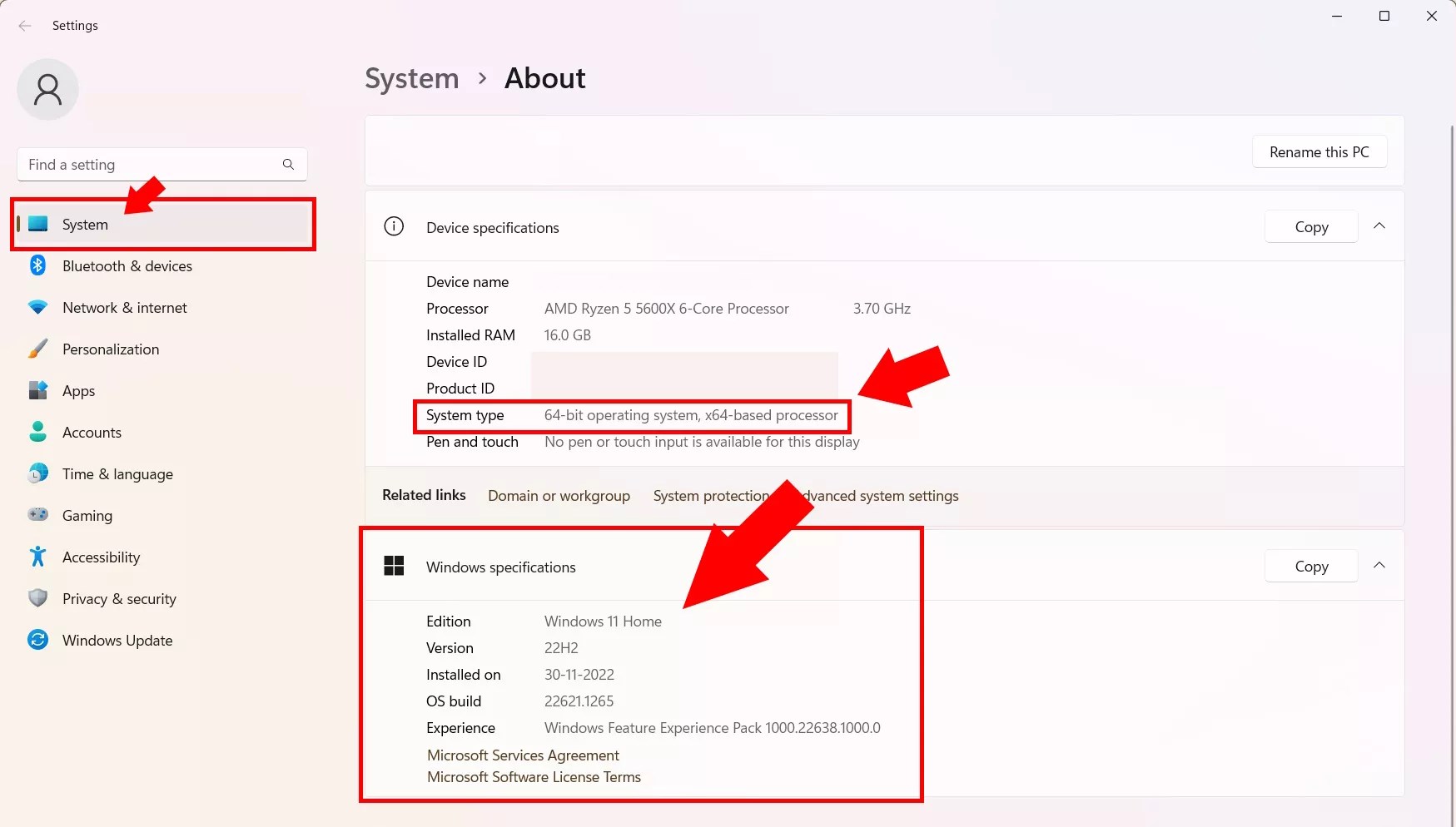 One of the easiest ways to find your Windows version is by checking the About section in the system settings. Follow these simple steps:
Click the Start menu
Find and click the Settings icon
Go to System and then select About
You’ll see the following information:
Edition: This shows which version of Windows 10/11 you are using (e.g., Home, Professional, Enterprise, or Education).
Version: The version number shows the specific version of Windows (e.g., 24H2).
OS Build: This displays the build of the operating system you’re running.
System Type: This indicates whether you’re using a 32-bit or 64-bit version of Windows.
2️⃣ Check Windows Version Using CMD ⌨️
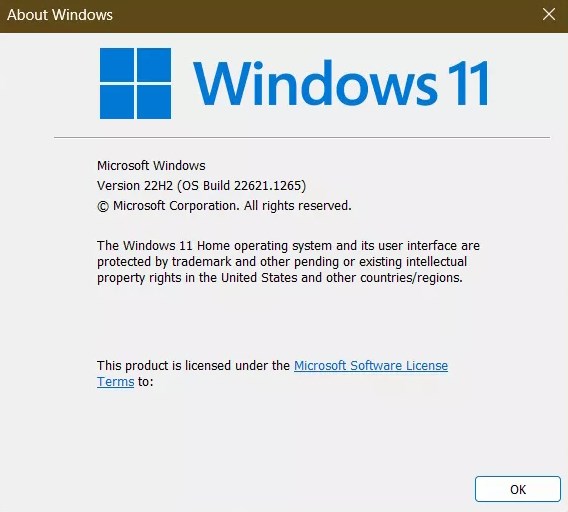
If you prefer using the Command Prompt (CMD), you can also check your Windows version with a quick command. To find out your Windows version through CMD, follow these steps:
Press Windows + R to open the Run dialog
Type cmd in the box and press Enter
In the Command Prompt window, type winver and press Enter
A window will pop up showing your Windows version, build, and other system information
3️⃣ How to Check if You’re Using 32-bit or 64-bit Windows 🤔
 Knowing whether you have a 32-bit or 64-bit version of Windows is important for software compatibility. All Windows 11 installations are 64-bit, as Microsoft stopped supporting 32-bit with Windows 11. However, Windows 11 includes an x86 compatibility layer, so 32-bit applications can still run, but you cannot install Windows 11 on a 32-bit machine.
Here’s how to check your system type:
Windows 10: Click the Start menu, go to Settings, then System, and click on About. Under Device Specifications, look for System Type, which will indicate 32-bit or 64-bit.
Windows 8: Go to Settings, then Change PC Settings → PC and Devices → PC Info, and look under System Type.
Windows 7: In the search box, type computer, right-click on Computer, and select Properties. Under System, you’ll find your system type listed.
Why is Knowing Your Windows Version Important?
Knowing your Windows version is crucial for determining which software to install, which updates to apply, which device drivers to use, and for troubleshooting. Whether your system is running on a 32-bit or 64-bit architecture can affect your hardware and software compatibility.
Knowing these details helps you avoid issues related to software performance and hardware incompatibilities.
With a few simple steps, you can easily check your Windows version, system type, and edition.
For more details, visit ankarahaberler.com.